
Projects
A project is one product, into one country, by one route. Everything else in Promote:Global feeds it or reads from it. This is the part of the product you will spend your week in, so it is worth reading all of this page once.
Mashonaland Highlands built eighteen projects for South Africa alone: seven export projects, four contractual ones, four investment ones and three built around people. The worked example at the foot of this page is one of them, walked from the first research step to the money in the bank.
Starting one
Projects → Create project opens a dialog that asks four questions in the order you would actually decide them, and the name last, because the name is the answer to the first three rather than a question of its own.
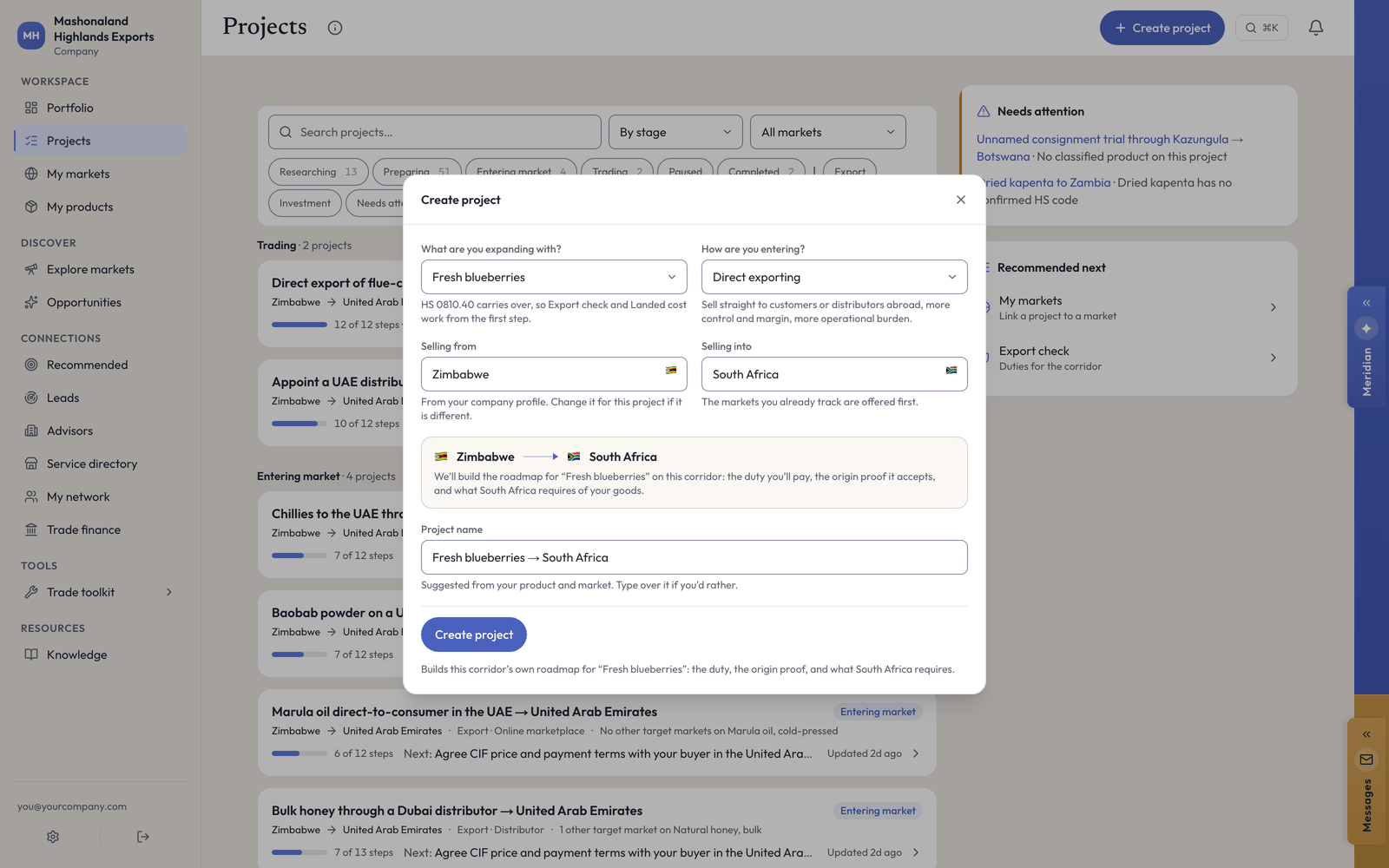
- What are you expanding with — a product or service from your catalog. The form tells you the HS code it is carrying over, and what that unlocks.
- How are you entering — eighteen methods in four groups: export-based, contractual, investment, and people-led. Each one carries its own one-line explanation.
- Selling from — usually your own country.
- Selling into — the destination. Pick both and a corridor card appears saying what it is about to build.
The title fills itself in — Fresh blueberries → South Africa — and stops the instant you type over it.
If a project lands on “Roadmap — No steps yet”. It happens with the investment and people-led methods when the form is opened from a market page. The fix is on the project itself: scroll to the roadmap and use Start from a proven plan, which offers Investment Setup, Joint venture, Greenfield and Local hire via EOR. Creating the same project from the Projects page instead also gives it a plan straight away.
The roadmap and its phases
A corridor plan lands as roughly a dozen steps, grouped into six phases that run in order. For blueberries into South Africa it was twelve steps, and the phases tell you what the work actually is:
- Research (1 step) — is there demand, at a price worth having?
- Compliance (4 steps) — the code, the duty, the origin proof, the rules the country applies to your goods.
- Outreach (1 step) — find and shortlist buyers.
- Commercial (1 step) — agree the price and the payment terms.
- Shipment (3 steps) — the document pack, the freight booking, the first order.
- Post-shipment (2 steps) — present the documents and collect payment, then debrief and fix the pack.
The plan is yours. Tick steps off in any order, add your own at the foot, and delete the ones that do not apply. Steps you write yourself carry no phase, and the roadmap groups them last, under Steps you added.
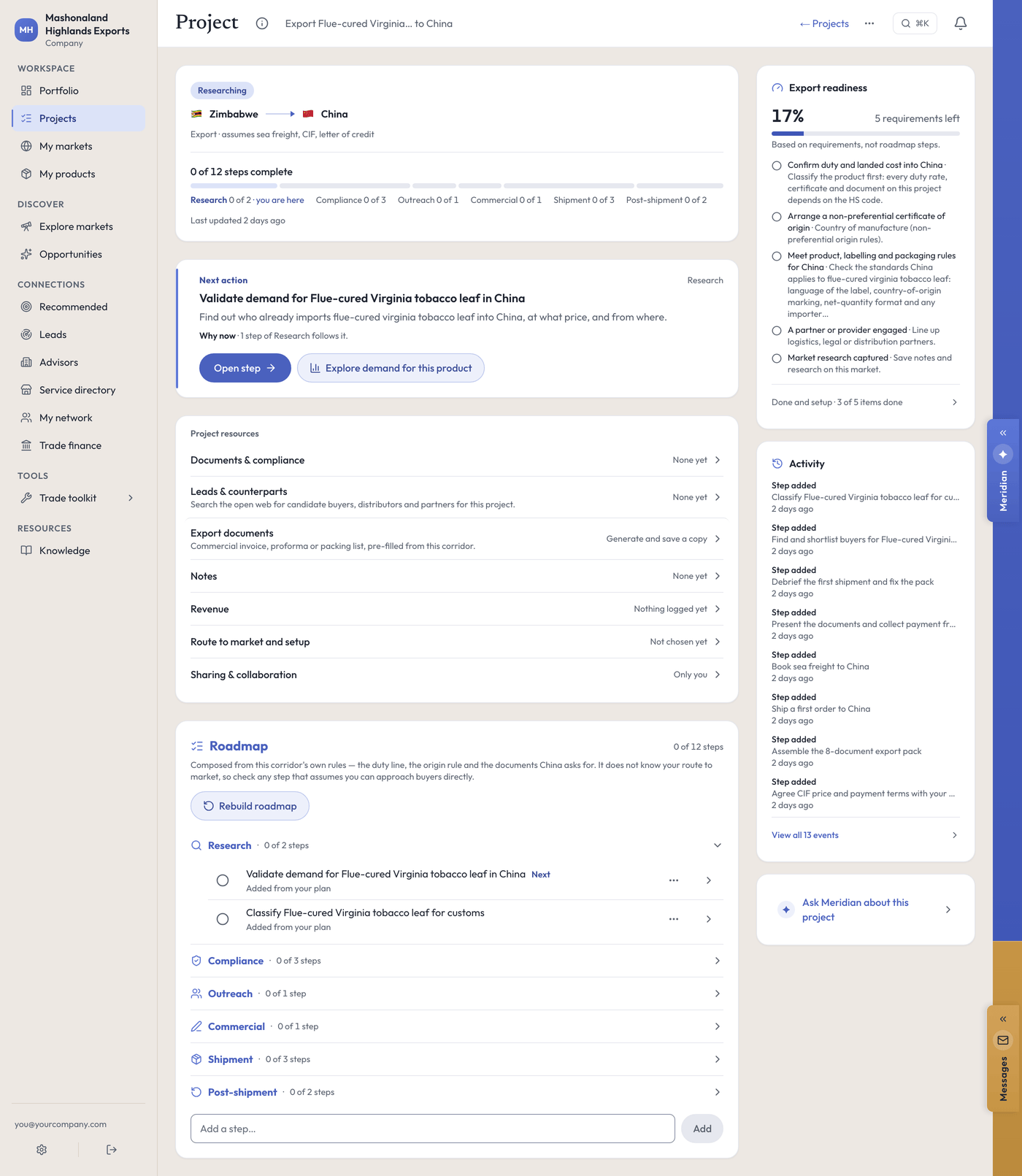
Four things on this page are worth naming.
- Next action gives you the step, its phase, and the reason it is next — Why now · 1 step of Research follows it — with the button that starts it and the tool that finishes it, side by side.
- The phase strip shows where you are: Research 0 of 2 · you are here, then each later phase with its own count.
- Export readiness is a different measure from the step count, and the page says so under the meter: Based on requirements, not roadmap steps. Readiness counts a short list of requirements: documents tracked, a partner engaged, research captured. A plan can be half finished with readiness still low, and neither number is wrong.
- Project resources is the row of drawers under Next action: Documents and compliance, Leads and counterparts, Export documents, Notes, Revenue, Route to market, and Sharing.
Steps
Open a step and a drawer slides in from the right. It is the best-built screen in the product and it is where most of your work happens.
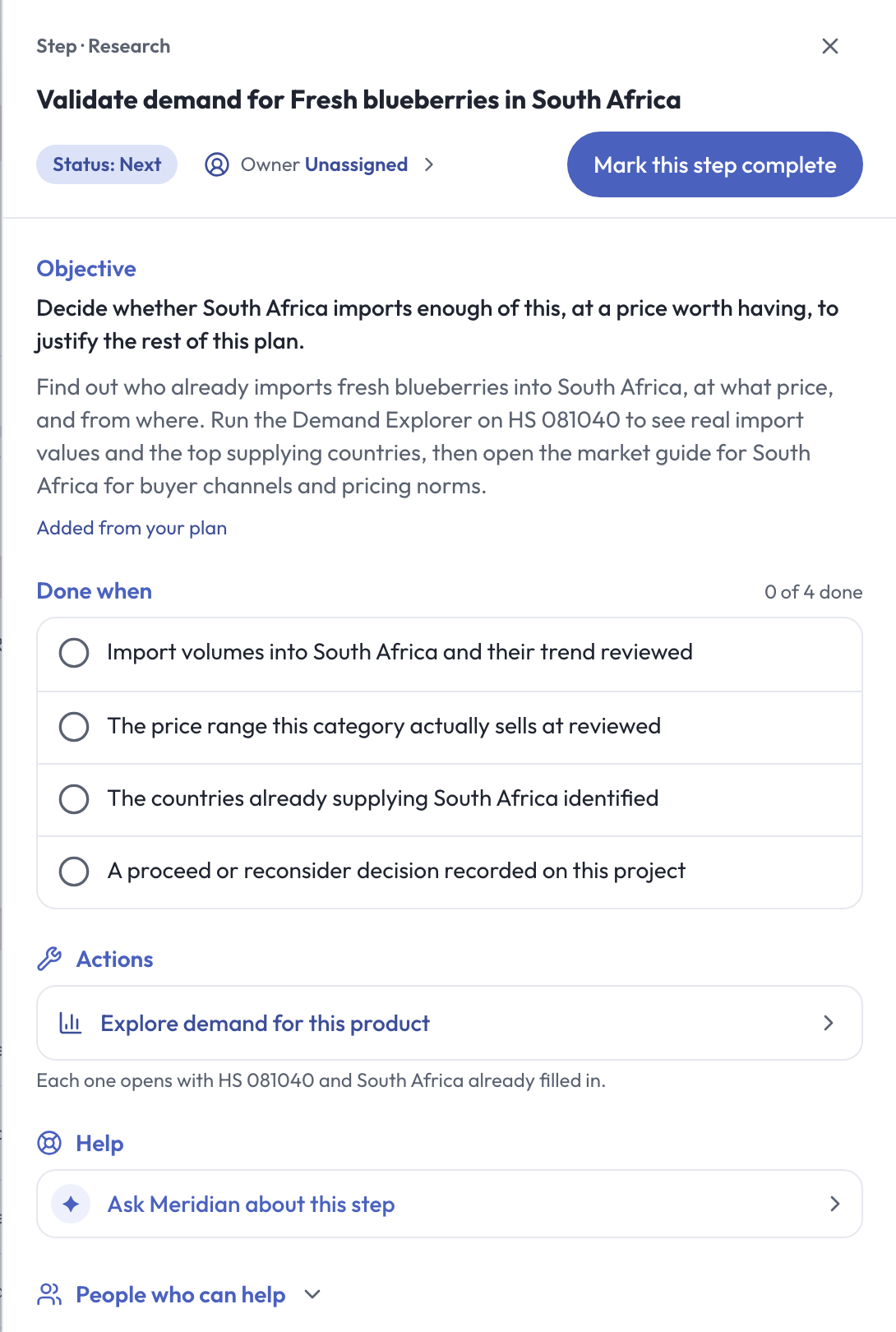
- Objective tells you why the step exists, not what to type. For the first blueberry step: Decide whether South Africa imports enough of this, at a price worth having, to justify the rest of this plan.
- Done when is a short list of criteria you tick individually. For that step: import volumes and their trend reviewed, the price range the category sells at reviewed, the countries already supplying South Africa identified, and a proceed or reconsider decision recorded.
- Actions are the tools for this step, and they open with your HS code and your country already in them.
- Help puts Meridian on this exact step.
- Subtasks are your own smaller to-dos inside the step. Type one, press add, tick it when it is done.
- Notes are yours, on the step, private.
At the top: the step’s status, who owns it, and Mark this step complete. At the foot of the detail, what finishing it unlocks.
Add subtasks one at a time. Type one, wait for it to appear in the list, then type the next. Adding three in quick succession can lose one of them to a save conflict. If you see This changed since you loaded it, do not refresh — your text is still in the box. Copy it, then reload and paste it back.
Blockers, and how to clear them
A project can report itself blocked. When it does, the blocker sits at the top of the page in its own card, says what is wrong, says what it costs you, and gives you the one button that fixes it.
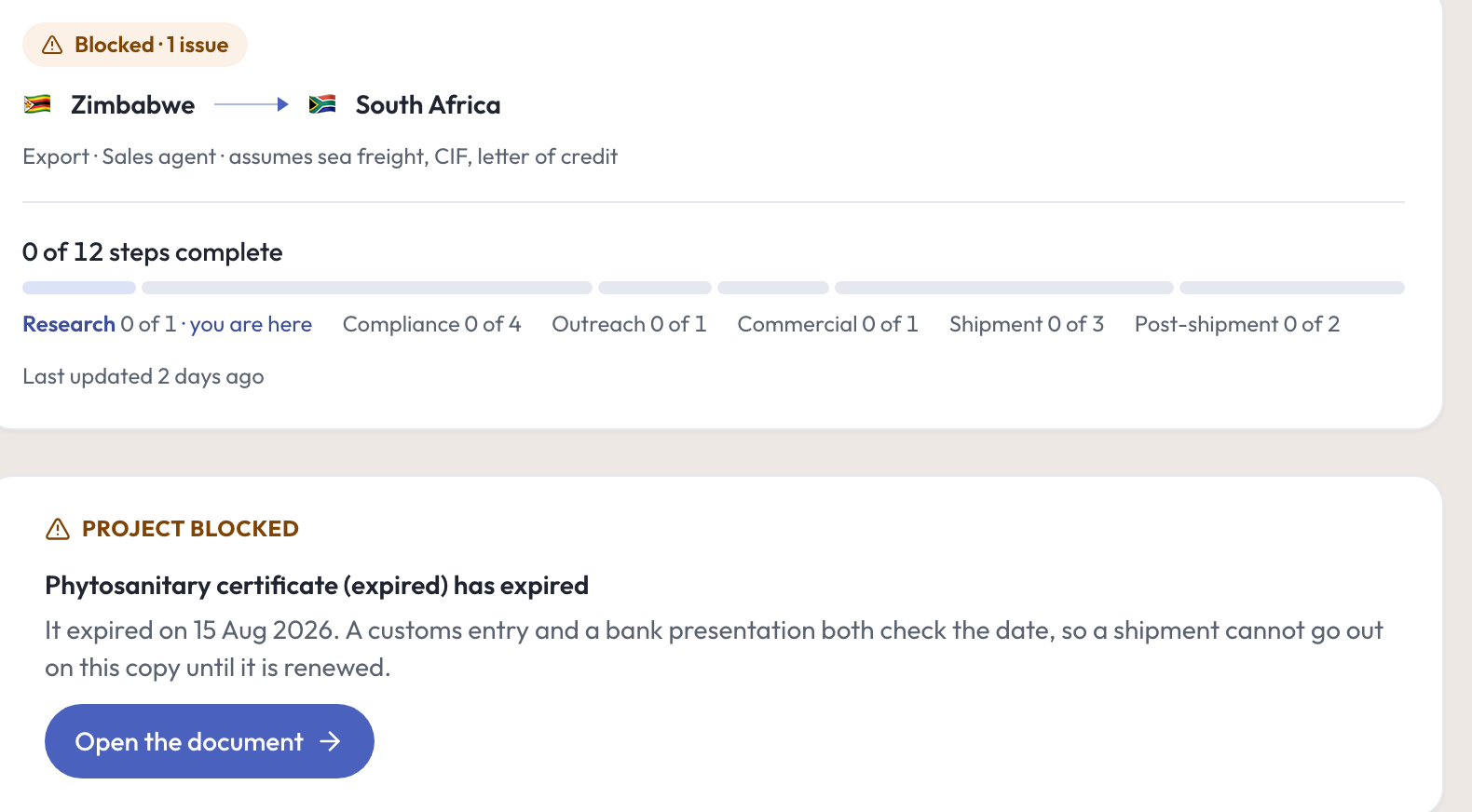
There are three kinds.
- No product on the project. Add one. The plan cannot quote a duty rate for nothing.
- The product has no confirmed HS code. Confirm it on the product, or use Export check to find it. Four steps in the plan stay generic until you do, because the duty, the origin proof and the certificate list are all looked up by the code.
- A required document has expired. The card names the certificate and the date — It expired on 15 Aug 2026. A customs entry and a bank presentation both check the date, so a shipment cannot go out on this copy until it is renewed. Renew it, then update the item on the compliance page.
Two things to know about dates and blockers. Adding a compliance item in the browser takes a name and a status, and there is no expiry field, so a certificate you add here will not raise the expired-document blocker on its own. And the projects list only shows the classification blocker on a row — an expired document shows on the project’s own page. If a project looks fine on the list, open it before you trust that. [not exercised — the expiry state used in this walk was written through the API, because the browser has no field for it.]
Documents and compliance
Project resources → Documents & compliance opens a page listing every certificate, filing and permit for this project, grouped by status with counts. Add an item by typing its name and setting its status. Suggest documents for this corridor asks Meridian what this route needs, and each suggestion arrives with the reason it was proposed. Nothing counts until you accept it.
The page is honest about what it is: requirements come from this project’s own plan, suggestions come from Meridian, and status is yours — nothing here is checked against a register. Marking a certificate Done means you say you hold it. It does not mean anyone confirmed that.
Everything you record here also collects in the Vault, in the sidebar, across all your projects and markets, with expiry badges computed on the dates: Expired, Expiring soon, or Valid to a date.
Notes and revenue
Notes is where research goes so it is not only in your head. Notes are private to your account.
Revenue logs what a project actually earned: the market, the amount, the currency, the date and an optional buyer label. Mashonaland Highlands logged USD 48,500 against Highveld Fresh Distributors on the blueberry project and USD 91,200 against Durban Kernel Co on the macadamia one. Those two numbers then appear on the market workspace, on the Portfolio, and in Trade finance when you raise a funding request against the invoice.
A worked example: blueberries into South Africa
One project, twelve steps, start to finish. Every screen in this section is that project.
Research. The step was Validate demand for Fresh blueberries in South Africa. Its one action opened the Demand explorer with HS 081040 already in it. The four Done-when criteria were ticked as each was answered, and a note recording the proceed decision went on the project.
Compliance, four steps. The duty step opened with a real objective, not a prompt: HS 081040 into South Africa already enters duty-free at the standard rate, so there is no duty saving to chase, and any origin paperwork here is about proving compliance rather than price. Source: WTO Timeseries, 2025. Export check confirmed the 0 percent line and listed the document set. Two compliance items were added and marked done: a phytosanitary certificate from the South African plant-health authority, and a SADC Certificate of Origin.
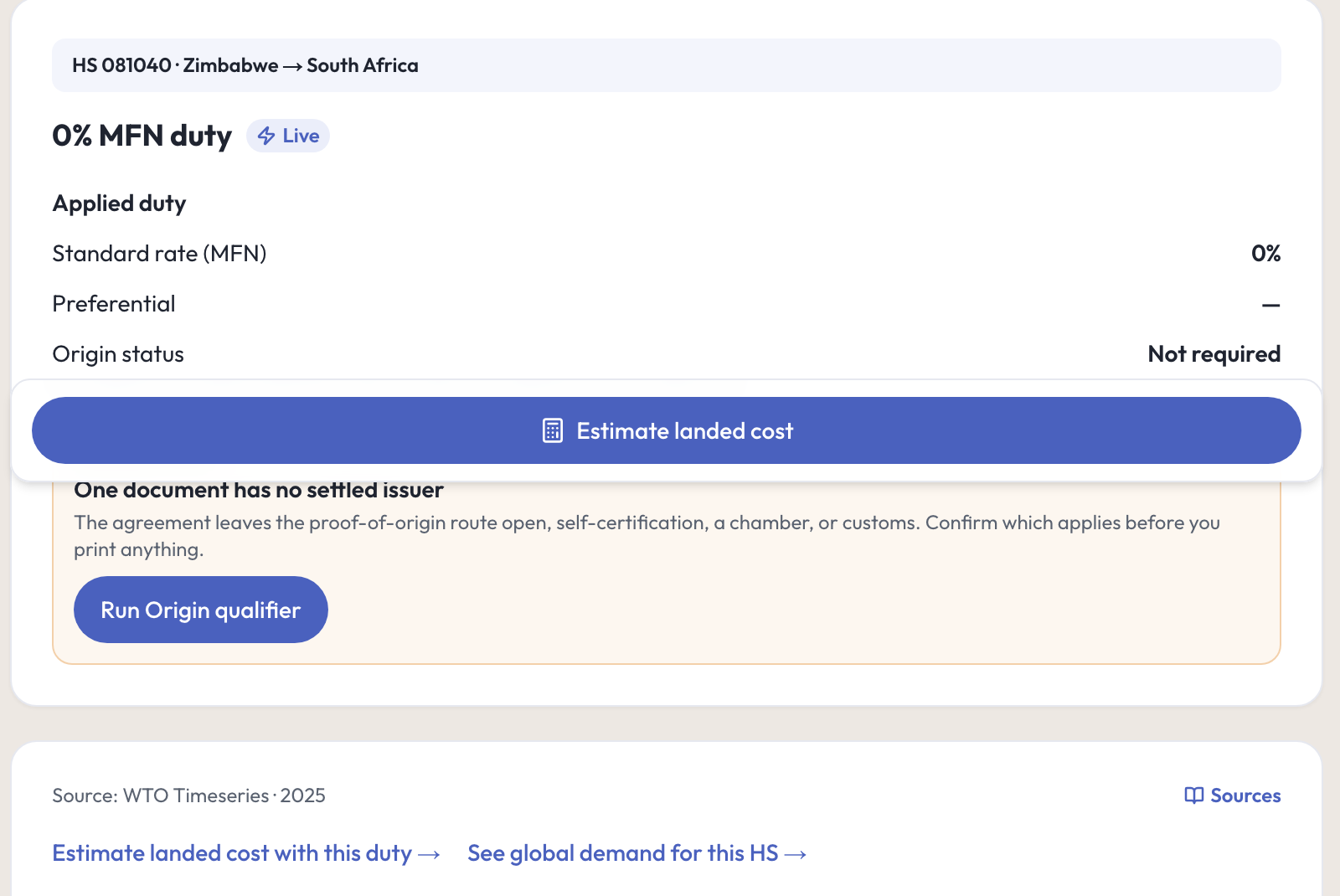
When the origin tools disagree, believe the Origin qualifier. On this corridor, Export check said origin was not required at the top of the page and then listed a SADC Certificate of Origin as required further down. The Origin qualifier, run on the same line, said it does not hold the product-specific rule for this code and every verdict would be provisional. The line is duty-free at the standard rate, so the certificate buys nothing here anyway. Where the answer matters and the tools differ, ask an advisor rather than guessing. See Tools.
Outreach. The step was to find and shortlist buyers. A Leads search was run once for South Africa, distributor, macadamia kernels. It took about three minutes and returned four named South African wholesalers with public phone numbers and cited sources, plus an honest summary saying coverage was thin and suggesting a trade-show exhibitor search next. Four were saved to the project. A freight firm in Harare was messaged about a reefer at plus one degree via Beitbridge and who lodges the customs entry.
Commercial. Agree CIF price and payment terms with your buyer in South Africa. Landed cost was run on the real numbers to check the price held up at destination.
Shipment and post-shipment. Assemble the document pack, book sea freight, ship the first order, present the documents and collect payment, debrief and fix the pack. Each was opened, its criteria ticked, and marked complete.
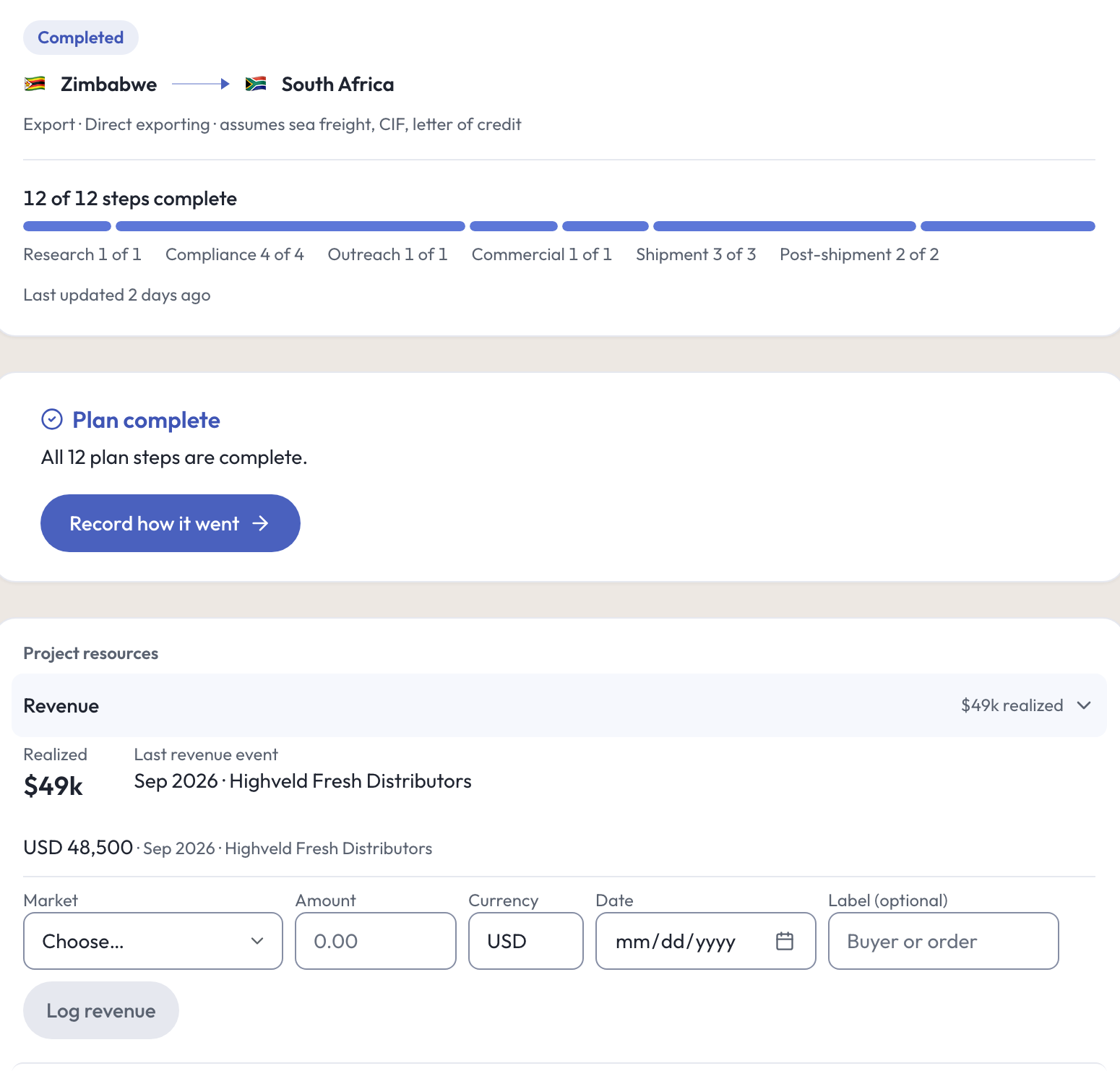
With the last step ticked, a Plan complete card takes the place of Next action — All 12 plan steps are complete. — with a Record how it went button, so the result is on the record and not only in your head. Revenue of USD 48,500 was logged against Highveld Fresh Distributors. The project reads Completed, and the phase strip reads 12 of 12.
Running many projects
At eighteen projects per market the list page is where you live. It groups by stage, filters by market, and has a Needs attention view. Two notes from running fifty-five of them at once:
- The list and the project page can word a stage differently — one may say Preparing where the other says Researching. The project page is computed from where your open steps actually are, so trust that one.
- If a page says Couldn’t load this project · Something went wrong on our side, and it happens two or three times in a few minutes on a busy day, it is usually not a fault. Your account has a ceiling on how many reads it can make in ten minutes, shared across every browser tab and every person on the account. Wait a minute and it clears. Nothing you saved is lost.
In the console
Each of these pages carries an (i) beside its title. This is what it says, and where it sends you next.
- Projects
Your market-entry initiatives.
- Project
One product, into one country, by one route.
- Compliance
Every certificate, filing and permit for this project, grouped by status.
- Vault
Every compliance item, certificate, note and link across your projects and markets.
What to do next
- Work one project properly before you start ten. The first plan teaches you the shape of the rest.
- Open a step and press its tool: Tools.
- Find the buyer the Outreach phase asks for: Finding people.
- Ask about the step you are stuck on: Meridian.