
For service providers
You do the work a company needs once it decides to cross a border: freight, customs, warehousing, certification, legal, recruitment, finance. Companies find you through your listing, and they always reach out first.
This page covers how that listing works, what shows up when a company asks for your help, and where the iPhone app and the web console differ.
You never solicit
The product says this on more than one screen, in its own words. On a company’s view of your firm, it states plainly that providers cannot contact the company unless the company initiates or accepts a connection. On the company directory, it puts the same rule the other way round: the company reaches out, and providers cannot solicit them. A company finds you, and a company writes first — every time.
Your listing
On the web, the listing editor opens on four facts, each answering a separate question: whether the listing itself is a draft, live, or paused; how far along its seal is (more on that below); how complete the listing is, as a fraction and a bar that agree with each other; and whether you are currently accepting new requests. Under them, the console says in plain language what a live status means (companies can find your firm in the directory, and it can be matched to their projects), and if anything is missing, it names exactly what: About, Website, Contact, Credentials, whichever tabs are still empty, each one a link that jumps you straight there.
One control is honest about not yet doing everything it sounds like: turning off the toggle for accepting new requests saves to your listing, but companies can still send you requests while it is off. If you need to actually stop work arriving, pause the listing instead. That is the one that takes you out of search.
The editor itself is organized into sections: Basics, Services, Coverage, Contact & response, Credentials, Portfolio, and a Preview, each tracking what it is still missing on its own, with a single save action at the foot. Basics is where the specificity shows: every field there is labeled with who sees it. Your About text is what shows on the card a company reads. A tagline, if you write one, saves to your listing but never reaches a company. There is no tagline field on what companies see, so the directory prints your About text instead. Your logo works the same honest way: Promote:Global does not store an image for a provider listing, so what a company sees beside your name is your initials, drawn by the directory itself.
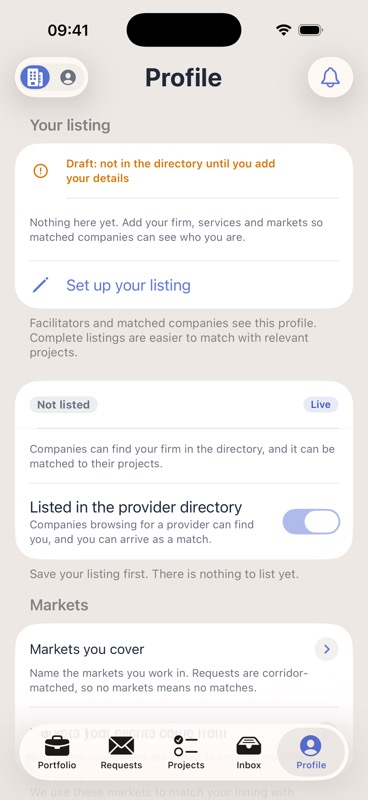
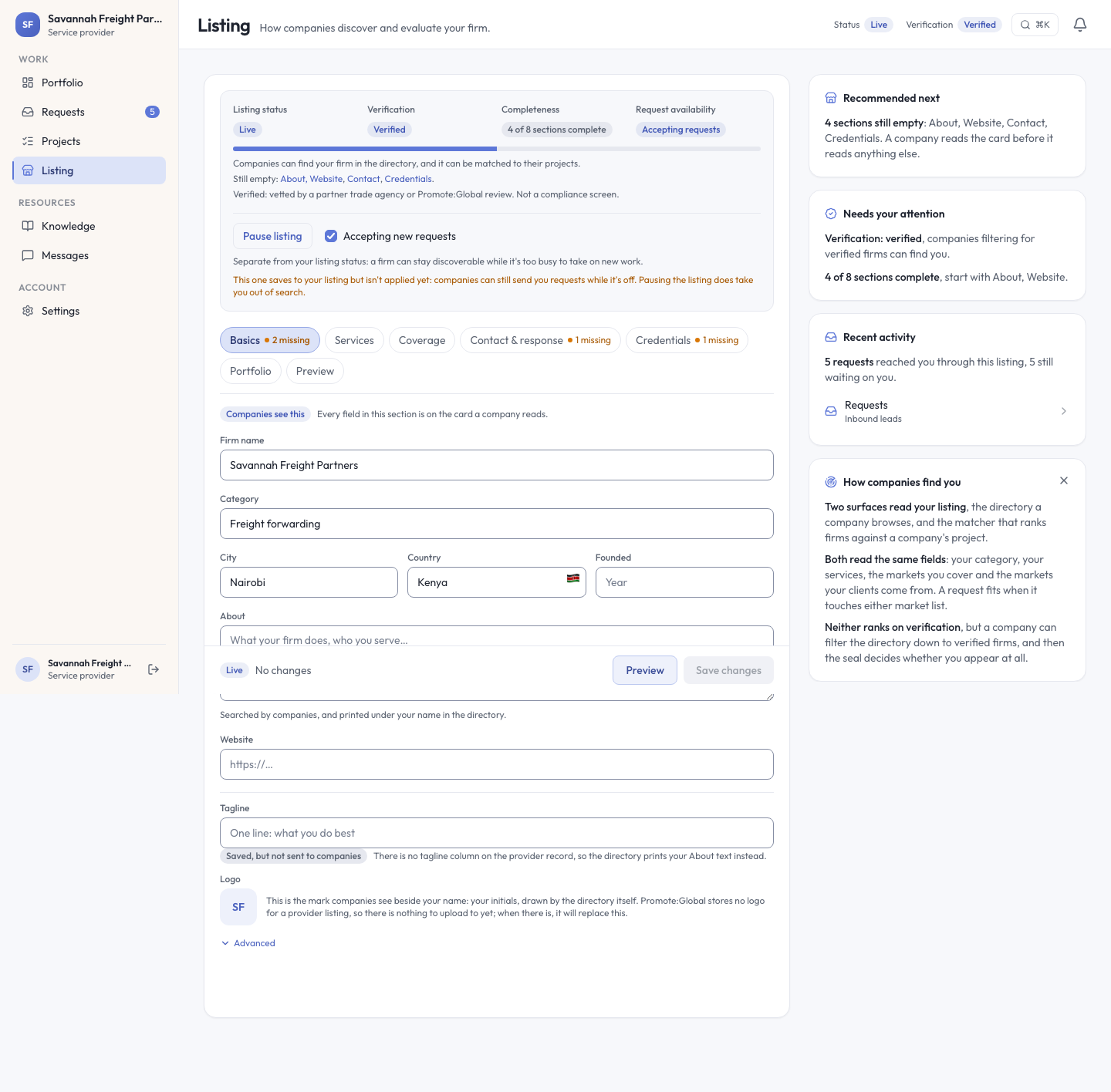
On the phone, the same object is a status line and two switches rather than a multi-tab editor. An unset listing does not dress up what is missing: a Draft label states plainly that the firm is not in the directory until its details are added, with a prompt to add your firm, services, and markets, and a button to start. Once there is something to show, a visibility card carries two pills (Not listed and Live) next to a discoverability toggle that explains itself: turn it on and companies browsing the directory can find you, and you can arrive as a match. On an empty listing, it is just as honest about its limits. There is nothing to list yet, so save your listing first.
Being findable
Getting matched to a company takes all three of the following at once, and both platforms are built to say so when one of them is missing:
- Listing status is Live, not Draft, not Paused.
- Discoverability is turned on.
- The listing clears a content floor that has no switch of its own.
The floor is the one providers miss: a name and a category is not a listing. You need either an About description, or your services plus at least one market list. The web states the fix outright: add an About description, or your services plus the markets you cover, because a listing with only a name and a category is held back from member search. A company cannot tell it from a placeholder.
You are also asked for markets twice, because a corridor has two ends. Markets you cover is where you do the work. Leave it empty and, as the phone puts it, requests are corridor-matched, so having no markets listed means no matches. Markets your clients come from is where your clients are based, and it only feeds the matcher. It is not printed on your card. A request fits you when it touches either list.
Verification
A listing can carry a small mark that sets it apart from an unlisted-feeling one, and it is earned two ways, neither one something you can apply for and win on your own merit alone. A trade agency or chamber that already knows your firm can vouch for it by name. Your listing then names the agency that did. Or Promote:Global can grant it directly after its own review, which shows with no agency named. Either route is at someone else’s discretion, not yours: the agency has to choose to vouch, and Promote:Global’s review is theirs to grant. Companies can filter the directory down to firms carrying either kind.
Separately, a company sizing up your firm can run its own check: a sanctions screening against the denied-party lists Promote:Global supports, currently the US Consolidated Screening List. That is a check the company runs, not one that appears on your listing, and it has nothing to do with the mark above.
Requests
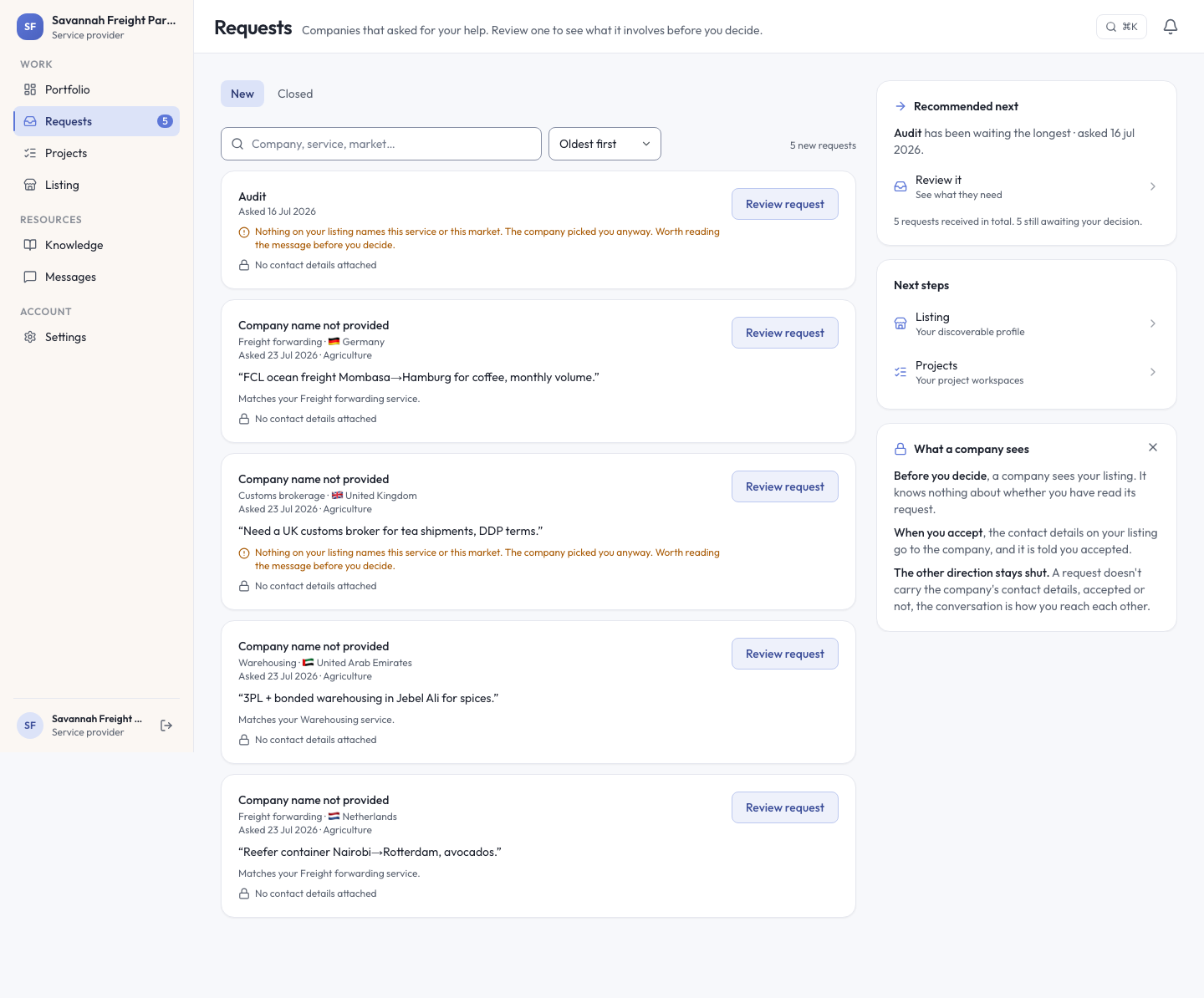
Companies that ask for your help land here, split into two tabs: New and Closed. Accepted work is not a third tab, because once you accept it, it is a project, and lives there instead.
Each row carries the service and market being asked about, the date, and the company’s own note in their words, enough to judge whether it is worth opening. A short line under the row explains why it reached you: sometimes it is a plain match to a service on your listing, and sometimes it is the honest version instead. Nothing on your listing names what they are asking for, and the company wrote to you anyway, which is worth reading the message for before you decide. Rows from a company with no profile name state plainly that no company name was provided, rather than inventing one.
No request arrives with the company’s contact details attached, and the reason is directional rather than a simple withholding: before you decide, the company can already see your listing, but has no way to know whether you have opened its request. Accept, and your own contact details go to the company, and it is told you accepted. The company’s details never travel with the request itself, accepted or not — from there, the conversation is how you reach each other.
Accept a request and it becomes a project, its own tab on both platforms, reading Active and Completed on the phone.
Your account
There is no plan to choose here, on either platform: being a provider is the plan. The iPhone Account screen states it as one line: your Plan reads Provider listing. What that unlocks was read directly from the API: web console access, connections, and matching, all on, one seat, no upgrade row and no paywall anywhere in the provider console.
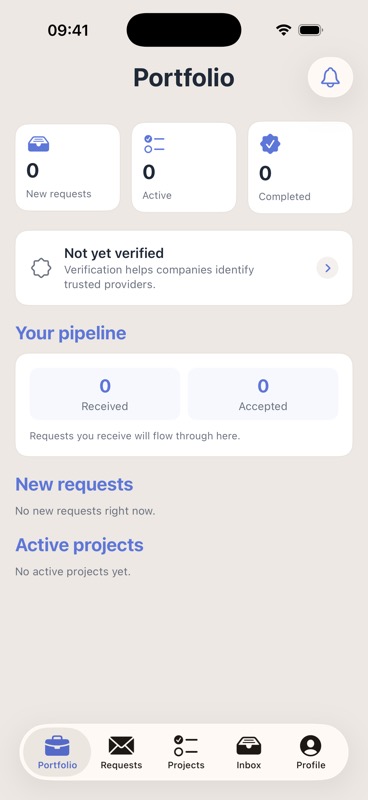
On the phone, the console is five tabs: Portfolio, Requests, Projects, Inbox, and Profile, most carrying a corner toggle to flip views; Profile’s switches between Listing and Account. Portfolio is the home screen: three counters up top for new, active, and completed work, your seal’s status, a received-and-accepted pipeline, then the lists themselves. An empty account does not read like a placeholder. Its empty states name exactly what is missing. On the web, the same console is a three-group sidebar instead: Work (Portfolio, Requests, Projects, Listing), Resources (Knowledge, Messages), Account (Settings), seven destinations, no nesting, with a live count badge on Requests.
Your own account settings, on the phone, are short: your email with a sign-out control, over a footer that states the stakes plainly (you are signed in, so your listing publishes and company requests reach you); a data-and-consent screen for seeing what you have agreed to and downloading a copy of your account data; account deletion, kept in its own card away from sign-out, that shows exactly what is deleted and what is kept before you confirm; and the plan, help, terms, and privacy rows. There is no notification-preferences row and no billing row. Nothing to configure, nothing to pay for. The web version gives the same page the heading Your account, and draws the same line in its own words: personal settings live there, and your firm’s public listing lives in Listing.
Signing in is the same one-time email link as everywhere else on Promote:Global: one email, one single-use link, no password to invent or forget.
See also: Providers & advisors, for how a company experiences the same relationship from its side.