
Start here
Promote:Global is a workspace for selling into a country you do not sell into yet. You tell it what you sell and where you want to sell it. It builds the plan, does the lookups, and helps you find the people. This page is the first five minutes.
The example running through this guide is a real one. Mashonaland Highlands Exports is a grower-exporter in Harare, Zimbabwe. It sells fresh blueberries, macadamia kernels, flue-cured tobacco leaf, marula oil, black granite and fourteen other things, and it wants South Africa, China and the United Arab Emirates. Every screen in this guide is that company’s own account.
What you get
Four things, and it is worth knowing which is which before you start.
- A plan per market. You pick a product and a country, and Promote:Global writes the steps: the classification, the duty, the origin proof, the documents, the buyer search, the shipment. Each step says why it exists and what finishes it.
- Live trade data, with its source on it. Duty rates, import volumes, economy figures. Every figure carries where it came from and what year it is from.
- People. Buyers and distributors found on the open web, service firms listed on the platform, advisory firms you can pay for a scoped opinion.
- Meridian, an AI assistant that can see your own workspace. It sits on every page and answers about the thing you are looking at.
What you do not get is a guarantee. Promote:Global does not find your buyer for you, does not clear your goods, and does not decide whether a shipment is compliant. It gets you to the right question faster, with the right numbers attached.
The five minutes that set it up
Signing up is four questions and takes about three minutes. There is no card. You answer them in the order a founder would actually answer them.
- Your company — the name, and where you are. Country, then region, then city.
- What you sell — one product or one service, with a toggle for which. A sentence of detail helps.
- Your goal — sell abroad, set up abroad, hire abroad, or Help me decide, which starts you on an export-shaped plan and lets you change route later.
- Your first market — one country, from a list of every country.
Pick the country and the plan appears before you commit to anything. For Mashonaland Highlands, tobacco leaf into China, it showed twelve steps with the product and the country in every title: Arrange a non-preferential certificate of origin (correct, because Zimbabwe and China have no trade agreement between them), Assemble the 8-document export pack, Book sea freight to China. It also said 8 of 12 steps open a tool that finishes them, and You can change, remove or reorder any step later. Both are true.
The two sharing choices
The last screen before you land in the product asks whether trade agencies and chambers on Promote:Global may find you. There are two switches, they are separate, and you can change either one later in Settings.
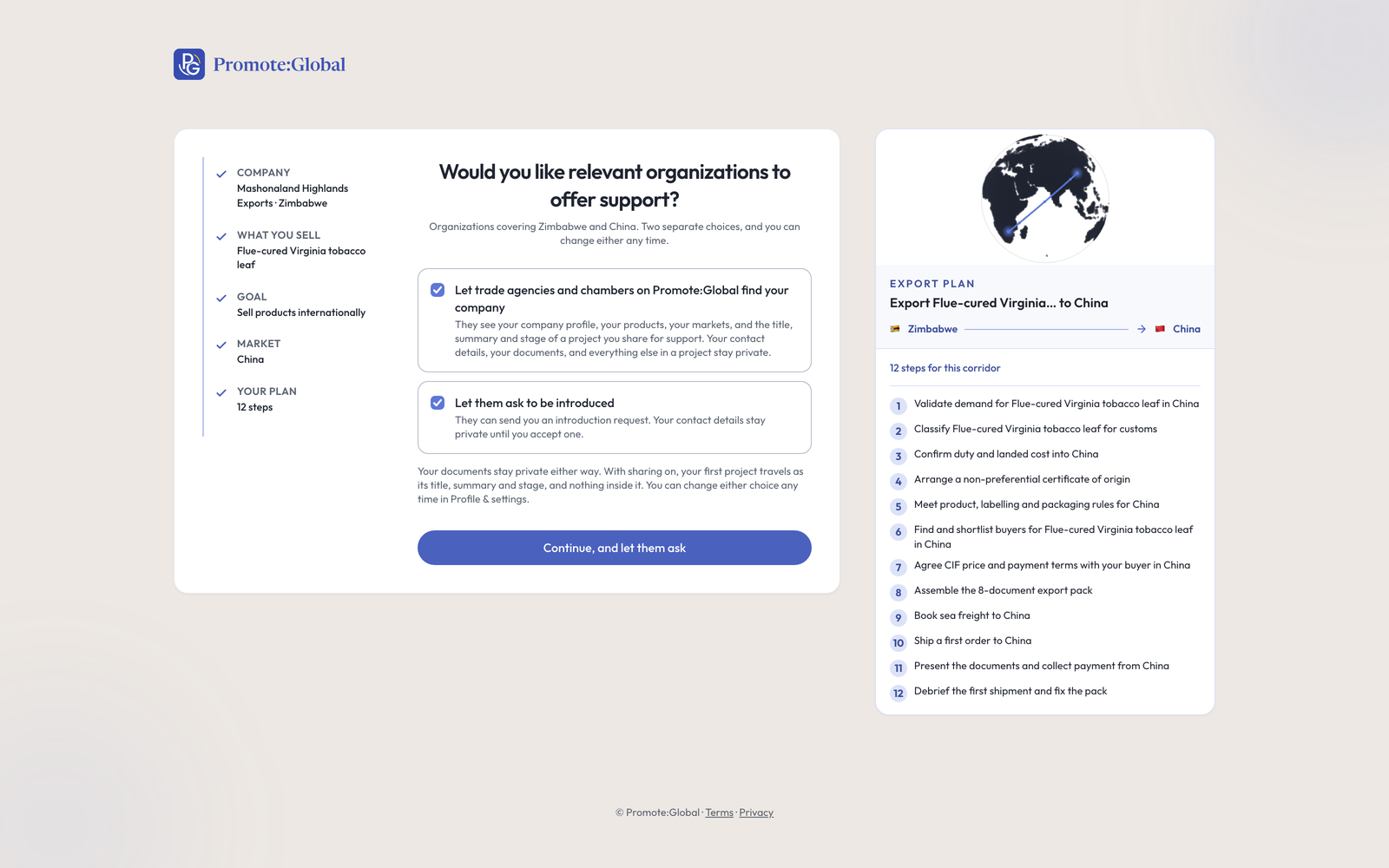
- Let trade agencies and chambers find your company. On, they see your company profile, your products, your markets, and the title, summary and stage of a project you choose to share. Your contact details, your documents and everything else inside a project stay private.
- Let them ask to be introduced. On, they can send you an introduction request. Your contact details stay private until you accept one. Off, nobody can send you a request, and you can still find and approach them yourself.
Read the button before you press it. It renames itself with the second switch: Continue, and let them find you becomes Continue, and let them ask. And if you reload this screen, the two switches reset to their defaults while every other answer is remembered. That is deliberate. A consent has to be an act, not something the browser restored for you.
Sharing runs in two directions and they work differently. When someone asks to be introduced to you, nothing of yours moves until you accept. When you reach out first — an introduction request, an advisory request — your own card travels with the request, and the screen says so before you send. See Introductions & consent.
Where you land
Submit, and the first thing you see is your project, not a dashboard. For Mashonaland Highlands it read PROJECT BLOCKED — Confirm the HS code for Flue-cured Virginia tobacco leaf, with the reason under it: four steps below stay generic until it is confirmed, because the duty rate, the origin proof and the certificates China asks for are all looked up by classification. One thing to do, and what it costs not to.
Filling the account in
Settings has seven pages, and the top of it tells you what is missing and what each thing buys you rather than showing a percentage. It is worth an hour on day one, because everything downstream reads from it: matching, the duty lookups, what an agency sees when it decides whether to talk to you.
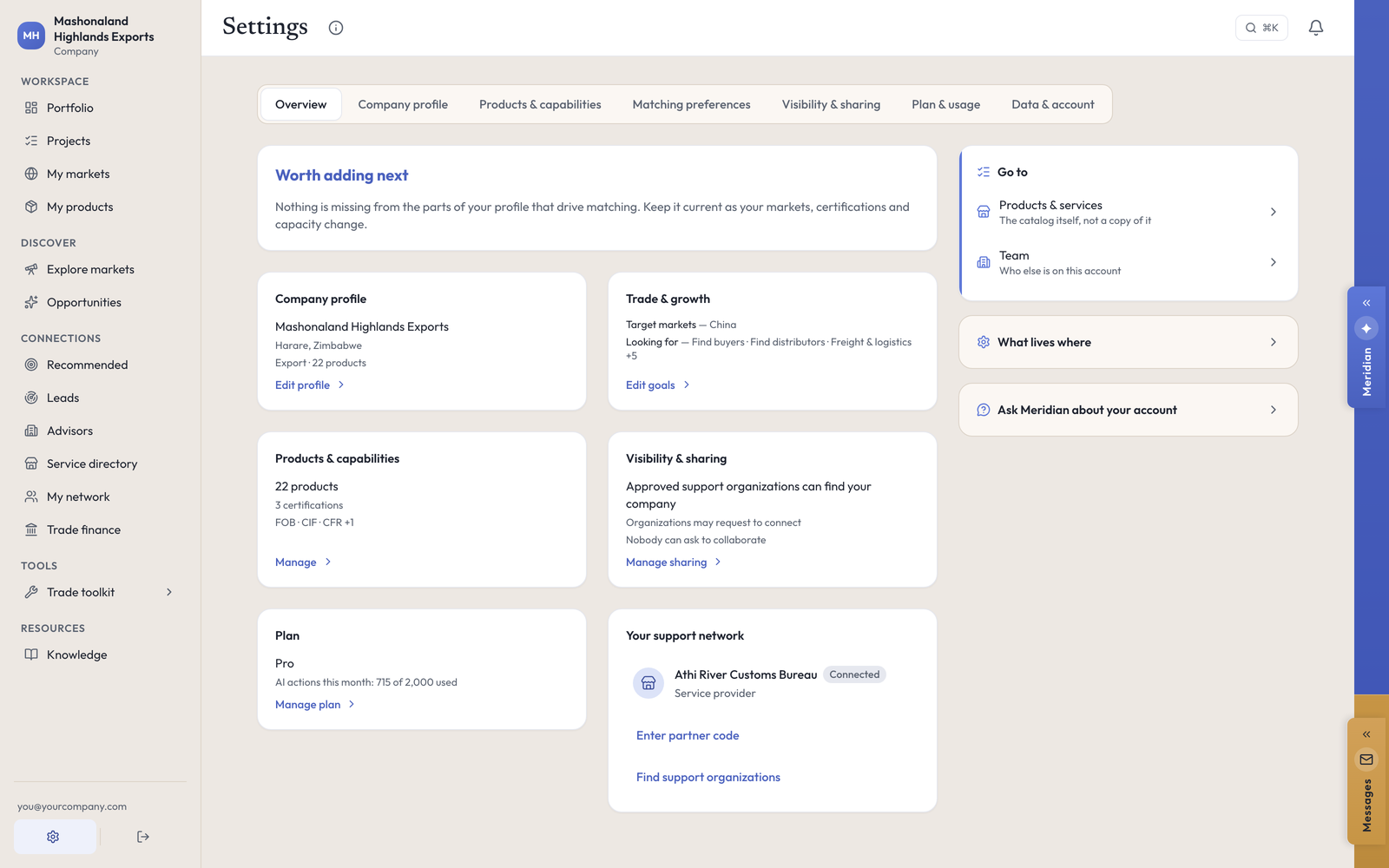
The order that pays off fastest:
- Company profile — a real paragraph about what you do, your legal form, your size, and one named contact person.
- Products & capabilities — certifications you hold, the Incoterms you trade on, your working languages.
- Matching preferences — this page splits three questions most people run together: where you are researching, where you already sell, and where you operate. Answer all three.
- Visibility & sharing — the two switches from sign-up, plus one for your private business metrics.
One thing to know about the metrics card. Annual revenue band, production capacity, minimum order, lead time and financing needs only save while Share selected performance metrics is switched on. With it off, the fields still accept typing and the values are dropped when the page saves. Turn the switch on first, then type.
Your consent record lives at Settings → Data & account. Every choice you have made is written down with a timestamp and the version of the wording you agreed under, and you can read it back at any time.
In the console
Each of these pages carries an (i) beside its title. This is what it says, and where it sends you next.
- Portfolio
Your markets, projects and revenue.
- Settings
Keep your company profile, trade goals, visibility and account settings up to date.
What to do next
- Add the rest of what you sell: Your products.
- Add the other countries you are chasing: Your markets.
- Then work the plan: Projects.